
On this page
- What these tools actually do
- Zapier: a step-by-step builder with the largest app directory
- Make: visual scenarios and credit-based pricing
- n8n: a self-hostable option with a Code node and an AI Agent node
- Side-by-side comparison (from official sources)
- Same Google Sheets test: n8n vs Zapier vs Make
- How to decide in five questions
- Three example scenarios
- Can you switch later?
- Frequently asked questions
- Not sure which platform fits?
When you decide to automate part of your business, the first question is usually which tool to use. Three names come up again and again: Zapier, Make and n8n. All three connect your apps and move information between them automatically. But they work differently, charge differently and suit different people.
This guide compares them in plain English, using the official documentation and a small comparison test we performed in our own tool accounts, so you can pick one with more confidence.
Disclosure: Ai Spark builds most of its workflows in n8n, so we know it better than the other two. We tried to keep this comparison fair, and we link to the official page behind every number.
Key takeaways
- Zapier lists the largest app directory of the three (9,000+ apps) and counts usage in tasks. Its Free plan includes 100 tasks a month and two-step Zaps.
- Make shows your workflow as a visual scenario and counts usage in credits. Its Free plan includes 1,000 credits a month.
- n8n has a free self-hosted Community Edition that you run yourself. On n8n Cloud, it counts usage per workflow execution.
- In our simple test, all three added one row to the same Google Sheet. The right choice still depends on your skills, your budget and how complex your workflows are.
What these tools actually do
All three tools follow the same basic idea, which we explain in our guide to what AI automation is. A workflow starts with a trigger (something happens, such as a new form submission) and then runs one or more actions (send an email, add a row to a sheet, create a CRM contact). You can add AI steps in the middle to write, summarise or sort information.
The difference is in how you build these workflows, how much control you have, and how you pay.
Zapier: a step-by-step builder with the largest app directory
Zapier is one of the best-known automation tools. You build "Zaps" by choosing a trigger app and then an action. In our test, the Zap editor showed the workflow as a short vertical list of steps. Zapier's app directory lists 9,000+ apps, so if you use a niche tool, check there first.
Often a good fit for: people who want a simple automation running quickly, and teams that rely on less common apps.
Watch out for: how usage is counted. According to Zapier's help centre, successful action steps count as tasks. Triggers, Filter, Paths, Formatter, Delay and Looping steps do not count, and failed actions do not count either. On the Free plan you get 100 tasks a month and two-step Zaps only. A three-step Zap, such as form, then sheet, then email, needs a plan that allows multi-step Zaps.
Make: visual scenarios and credit-based pricing
Make shows your workflow as a visual scenario made of modules. In our test, the scenario was a single Google Sheets module on a canvas, started with a "Run once" button.
Often a good fit for: people who like to see the whole process on one canvas.
Watch out for: the pricing unit. Make's help centre says credits are now the billing unit, replacing the older term "operations". By default, a module run uses 1 credit, but some features use more. For example, AI features can vary with tokens, file size or run time. The Free plan includes 1,000 credits a month. Older articles, including earlier versions of this one, describe Make as "per operation", which is outdated.
n8n: a self-hostable option with a Code node and an AI Agent node
n8n also uses a visual canvas of connected nodes. Three things stand out in the official documentation:
- Hosting choice. n8n's docs describe n8n Cloud as a managed service. They also describe self-hosting, where you provide the infrastructure and handle maintenance yourself. The self-hosted Community Edition is listed as free.
- Code. The Code node supports JavaScript and Python.
- AI. The AI Agent node lets you connect a chat model and one or more tools, and the agent decides which tools to call.
On n8n Cloud, pricing is based on workflow executions, where one run of the whole workflow counts as one execution, however many steps it has. n8n lists 2,367 integrations.
Often a good fit for: people who are comfortable with a little technical setup, businesses that want the option to host their own data, and anyone who wants to build AI-powered workflows.
Watch out for: self-hosting means you are responsible for updates, backups and security. If that sounds stressful, n8n Cloud avoids it.
New to n8n? Our step-by-step tutorial shows you how to build a lead follow-up workflow with Google Sheets and a Gmail draft.
Side-by-side comparison (from official sources)
| Zapier | Make | n8n | |
|---|---|---|---|
| Builder style | Step-by-step list (our test) | Visual canvas (our test) | Visual canvas (our test) |
| How usage is counted | Per task: successful action steps | Credits: by default 1 per module run, more for some features | Per workflow execution on n8n Cloud |
| Free option | Free plan: 100 tasks a month, two-step Zaps | Free plan: 1,000 credits a month | Self-hosted Community Edition (you run it); Cloud has a free trial |
| Directory size shown on its own site | 9,000+ apps | About 3,600 apps listed | 2,367 integrations |
| Self-hosting | Not reviewed here | Not reviewed here | Yes (Community Edition) |
| Code in workflows | Not compared here | Not compared here | Code node: JavaScript and Python |
| AI agents | Not tested here | Not tested here | AI Agent node |
Last checked: 18 October 2026. Directory sizes are counted differently by each company, so treat them as a rough guide, not a like-for-like score. Prices and plan limits change often, so check each pricing page before you commit.
Same Google Sheets test: n8n vs Zapier vs Make
Reading pricing pages only tells you so much, so we ran a small comparison test in our own accounts in each tool.
How we tested:
- The same Google Sheet, called "AI Spark Comparison Test", with three columns: Name, Email and Source.
- The same goal in each tool: take a test input and append one row to the sheet.
- The same field values, with a different name in the Name column for each tool so the rows could be told apart.
- The results below come from the verified successful run in each tool.
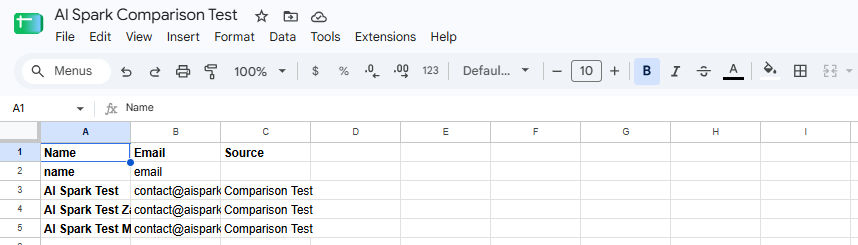
What this test is not: it is not a benchmark. It is one simple workflow, set up once in each tool, in our own accounts. It does not include AI steps, larger volumes or paid plans. We used n8n's self-hosted Community Edition (v2.33.6) on our own computer, and the Free plans of Zapier and Make. Each tool reports run time differently, so we do not compare speed.
| Metric | n8n | Zapier | Make |
|---|---|---|---|
| Plan used | Self-hosted Community Edition | Free plan | Free plan |
| Steps or modules | 2 nodes: Manual Trigger, then Google Sheets "Append row" | 2 steps: Schedule by Zapier trigger, then Google Sheets "Create Spreadsheet Row" | 1 module: Google Sheets "Add a Row", started with "Run once" |
| Result | Run succeeded, one new row | Editor test succeeded, one new row | Run succeeded, one new row |
| Usage unit | Executions | Tasks | Credits |
| What we saw | The run appeared in the Executions list | Task counter showed 0 of 100 before and after the editor test | The run showed 1 credit; the plan page showed 1 of 1,000 credits used |
| Google Sheets connection | In this test, the saved connection had expired and needed one reconnect | One Google sign-in and approval | A Google connection already existed in the account, so no new sign-in was needed |
| Execution and history | Executions tab listing each run | Zap history showed no runs after an editor test, because the Zap was a draft and was never published | History tab listing the run with its status, credits and data size |
| Free-plan limitation encountered | None; no paid feature was needed | None in this test; the Free plan allows two-step Zaps only | None in this test; Free allows 1,000 credits a month |
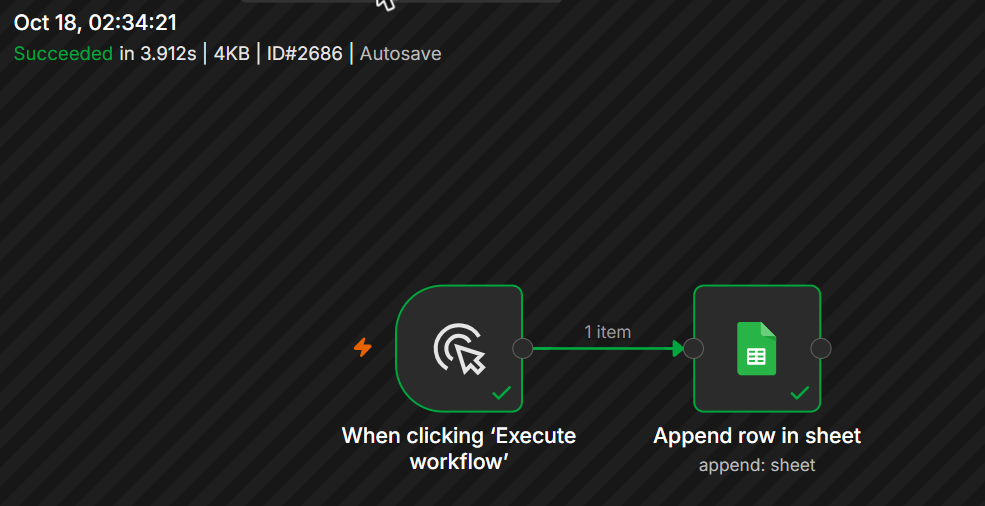
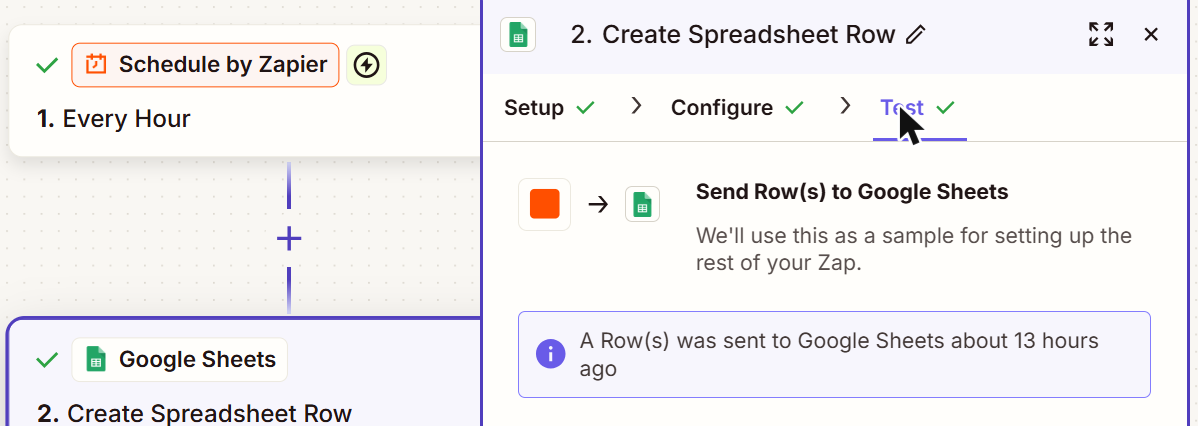
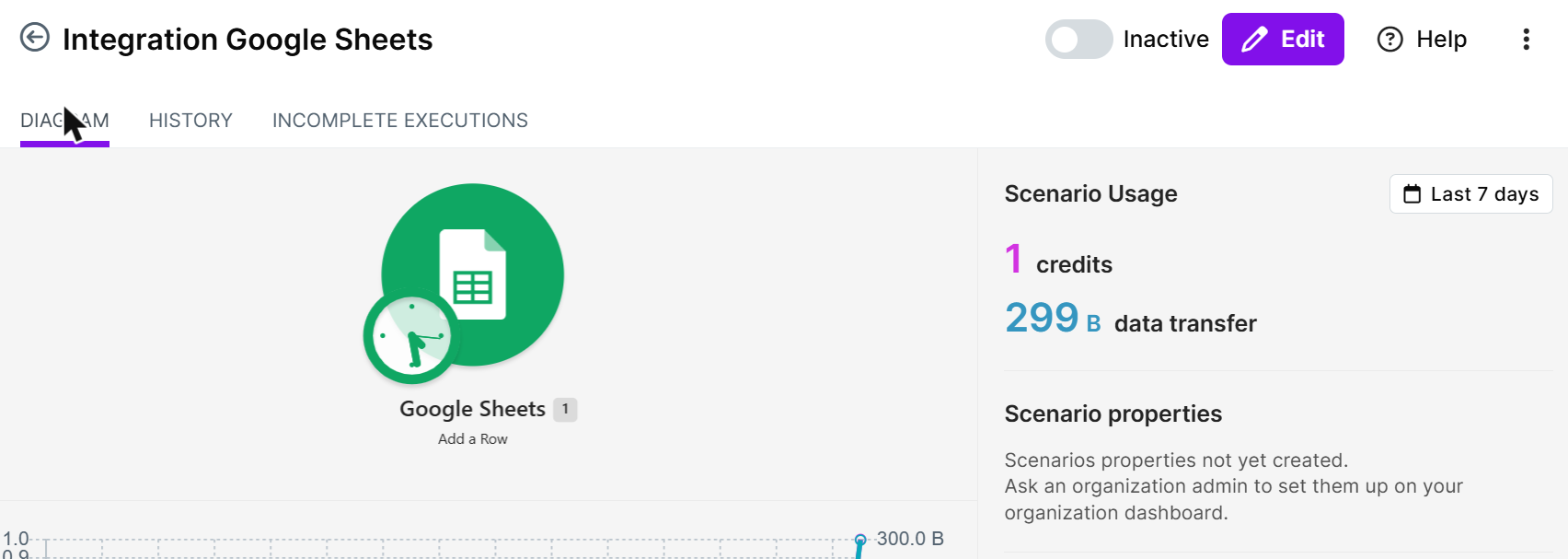
How to read the step counts: Zapier has no manual trigger, so we used its built-in Schedule trigger and tested inside the editor without publishing the Zap. Make has no separate trigger module in this setup, because we started the scenario with "Run once". The different step counts reflect how each tool starts a workflow, not how hard each one is to use.
One practical tip: in our test, all three tools offered the sheet's column names as fields to fill in. Make sure row 1 of your sheet has one clear header per column before you start.
How to decide in five questions
- How technical are you? If the word "API" makes you nervous, try Zapier's or Make's free plan first. If you enjoy figuring things out, n8n's self-hosted option is worth a look.
- Which apps must it connect? List them. Check that your chosen tool lists each one in its directory, or offers another way to connect to it (check its documentation).
- How many steps will a typical workflow have, and how often will it run? Compare the usage units. n8n Cloud counts one execution per run, Zapier counts successful action steps, and Make counts credits per module run by default.
- Where should your data live? If you want the option to host the tool yourself, n8n offers a self-hosted version. We did not review self-hosting options for Zapier or Make, so check their documentation if this matters to you.
- Will you use AI heavily? All three have AI-related features, but we only tested a simple Google Sheets workflow. If you plan agent-style workflows, read the AI Agent node documentation for n8n and the equivalent pages for the others, and test with your own use case.
Our honest view: there is no single "best" tool. A simple workflow that runs reliably beats a clever one you never finish. Choose the tool you will actually use. If you are not sure which task to automate first, run a simple automation audit before you pick a platform.
Three example scenarios
These are illustrations, not case studies. We did not build them.
A freelance designer with five clients. She wants new enquiries from her website form saved to a Google Sheet and a thank-you email sent. Saving to the sheet is two steps. Adding the email makes three, so she should check whether the plan she wants allows multi-step workflows. n8n Community Edition and Make Free are worth testing for the full flow. With Zapier, check whether your plan supports the multi-step workflow you need.
An online shop processing orders. The owner wants each order checked, split by product type, sent to different suppliers and logged for accounting. This needs branching and data changes. All three tools can be used for this kind of work, so test the exact flow on a free plan before you commit.
A small agency building AI assistants for clients. The agency needs AI agents that read emails, look up CRM records and draft replies, with client data kept under its control. n8n's self-hosted option and AI Agent node are worth evaluating first, ideally against a real client workflow. If the workflow touches your customer records, our guide to CRM automation workflows shows common examples.
Can you switch later?
Yes, but it takes work, because workflows cannot be copied directly between these tools. The good news is that the logic you design (trigger, steps, conditions) transfers easily. Write each workflow down in plain language before you build it. If you ever switch, you rebuild from your notes rather than from memory.
Frequently asked questions
Is n8n free?
n8n's documentation lists the self-hosted Community Edition as free, but you provide and maintain your own server. n8n Cloud is a paid managed service with a free trial.
Is Zapier free?
Zapier has a Free plan with 100 tasks a month and two-step Zaps only. Check the pricing page for current limits.
Is Make free?
Make has a Free plan with 1,000 credits a month. Check the pricing page for current limits.
Do I need to know how to code?
Not for a simple workflow like the one in our test, which we set up with menus and fields. Code is optional. For example, n8n has a Code node for JavaScript and Python.
Which tool is best for AI automation?
It depends on your workflow. All three offer AI-related features, and we did not test them. Read each tool's AI documentation and try your own use case on a free plan.
Not sure which platform fits?
Not sure which automation platform fits your workflow? Write down what triggers the process, which apps are involved and what should happen at the end. AI Spark can review your process and suggest a practical setup.
Pick one tool, automate one small task this week, and learn from it. Once you have a single workflow saving you time, the second and third come much faster.
Sources
Last checked: 18 October 2026.
- n8n: pricing, integrations, Code node, AI Agent node, choosing how to use n8n
- Zapier: pricing, how task usage is measured, app directory
- Make: pricing, credits, integrations