
On this page
If you run a small business, you probably answer the same questions every day, copy details from one app into another and send follow-up messages you could write in your sleep. None of it is hard. It is just repetitive, and it quietly eats hours you could spend on clients, sales or rest.
AI automation hands some of that repetitive work to software. This guide explains what it is in plain English, shows one real automation run we did in n8n, step by step, and tells you where AI helps and where it does not.
Disclosure: Ai Spark builds its workflows mainly in n8n, so our real example comes from n8n. Zapier and Make follow the same basic ideas.
Key takeaways
- Regular automation follows fixed rules. AI automation adds a step that can read, sort or write text.
- Every workflow has a trigger, one or more actions and, optionally, an AI step.
- Start with a task that is frequent, boring and low-risk. Build it without AI first, then add AI.
Once you know the basics, see how to choose the right AI tool, compare n8n, Zapier and Make, or jump to 10 CRM automation workflow examples you can adapt.
Automation vs. AI automation
Regular automation is a set of "if this happens, do that" rules. If someone fills in your contact form, add their details to a spreadsheet. If an invoice is paid, send a thank-you email. The software never thinks; it follows the rule you gave it, the same way every time.
AI automation adds a step in the middle that can handle messy, human input. Instead of only copying a message into a spreadsheet, the AI step can read the message and decide whether it is a sales enquiry, a complaint or spam. It can summarise a long email, pull an order number out of a document, or draft a reply.
The two kinds of step behave differently:
| Fixed-rule step | AI step | |
|---|---|---|
| Input it handles well | Neat fields such as name, email and amount | Free text such as an email or a message |
| Same input, same output? | Yes | Not always; the wording can vary |
| How it fails | Breaks when the format changes | Can produce text that sounds right but is wrong |
| What to do | Test once, then trust it | Check the output until you trust it |
The last row matters. Anthropic's documentation notes that AI models can sometimes produce text that is factually wrong, which it calls hallucination (Reduce hallucinations, Claude Platform Docs). That is why a human check is a good habit.
The three building blocks of every workflow
Whether you use n8n, Make or Zapier, every automation is built from the same three pieces:
| Block | What it does | Example |
|---|---|---|
| Trigger | The event that starts the workflow | A new form submission, a new email, a new row in a sheet, a scheduled time |
| AI step (optional) | Reads, classifies, extracts or writes | "Is this a sales lead? Summarise their request in one sentence." |
| Actions | The things the workflow does | Send an email, create a CRM contact, update a sheet |
The tools use the same words. n8n's documentation describes a trigger node as the node that runs a workflow when certain conditions are met, and says all production workflows need at least one (n8n: Work with nodes). Zapier's help centre says a Zap's first step is always a trigger, and that a successful action counts as a task (Zapier: How is task usage measured).
A real automation run, step by step
Here is what the three blocks look like in a real n8n run. We built a lead follow-up workflow and ran it once. This workflow has no AI step. Its reply is a fixed template. We show it because it has the same trigger-and-action structure that an AI step plugs into. The full build is in our tutorial: build a lead follow-up workflow with Google Sheets and a Gmail draft.
- Trigger: a test form submission starts the workflow.
- Action: the lead is saved to a Google Sheet first, so it is not lost if a later step fails.
- Action: a reply subject and body are prepared from the lead's own answers.
- Action: a Gmail draft is created. No email was sent.
- Action: the sheet row is updated to "Draft Prepared".
In our verified run (execution #2689), all five steps succeeded in 5.076 seconds.

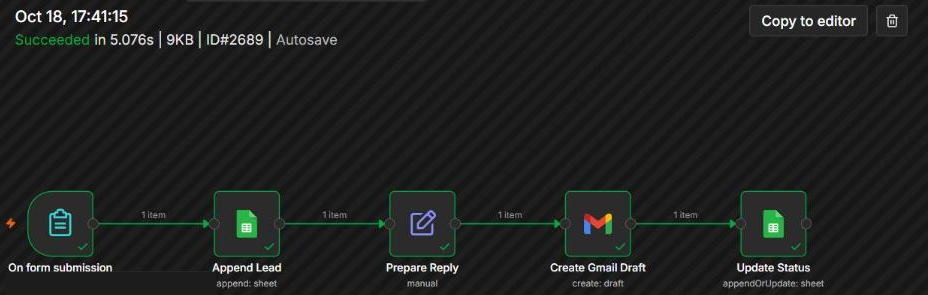

Where would AI go? Between "prepare reply" and "create draft". An AI step could write a more personal reply instead of a template. We did not test an AI step in this run, so we do not show results for one. If you add one, keep the last step as a draft until you trust the output.
Four common examples
These are typical uses, not case studies. We did not build all of them.
- Lead follow-up. A new form entry is saved, and a reply is prepared for you to review. (We built the template version shown above.)
- Inbox triage. Each new email is labelled "lead", "support", "invoice" or "ignore", so you open your inbox to a sorted list.
- Content repurposing. When you publish a post, an automation turns it into draft captions that wait in a sheet for your review.
- Data entry from documents. Details such as supplier, date and amount are extracted into a sheet, and you check the totals.
What AI automation is not good at
AI is useful, but it is not magic. Be careful with:
- High-stakes decisions. Refunds, legal replies and anything financial should keep a human in the loop.
- Tasks with no clear process. If you cannot explain the steps to a new employee, you cannot explain them to an automation either.
- Facts the AI cannot see. An AI step only knows what you send it. If it needs your prices or policies, include them or leave that part to a person.
A good rule: let the AI draft and let a human approve until you trust the results. In our real run above, the workflow created a Gmail draft instead of sending an email, for exactly this reason.
Which tools do people use?
Three names come up most often. This is what their own pages say:
| Tool | What its official pages say |
|---|---|
| Zapier | Its app directory lists 9,000+ apps. Usage is counted in tasks. |
| Make | Workflows are visual scenarios. Usage is counted in credits, which replaced the older term "operations". |
| n8n | Workflows are built on a visual canvas. The self-hosted Community Edition is free, but you run and maintain it yourself. The docs describe an AI Agent node. |
Last checked: 18 October 2026 for directory and plan details, 25 October 2026 for the trigger, task and credit definitions. Plans change, so check each pricing page. For prices, limits and a same-task test of all three, read n8n vs Zapier vs Make. Pick the one that feels comfortable and stay with it while you learn.
How to start this week
- Make a list. For five working days, write down every task you repeat more than three times. Our simple automation audit shows how to score them.
- Pick one task. Choose something frequent, boring and low-risk.
- Draw it on paper. Write the trigger, each step and the result. Keep it to five boxes or fewer.
- Build it without AI first. Get the trigger and actions working with simple rules.
- Add the AI step. Use it only where judgment is needed, and keep a human approval before anything is sent.
- Measure the time saved. Note how long the task took before and after.
Is it worth it? A simple calculation
The formula is: minutes per task × tasks per day × working days = minutes per month.
Here is an example, not a promise. If replying to a new enquiry takes six minutes and you get twenty a day, that is 6 × 20 × 20 working days = 2,400 minutes, or about 40 hours a month. If automation handles half of that work, you win back about 20 hours. Use your own numbers to find out what it is worth for you.
Frequently asked questions
Do I need to know how to code?
Not for a simple workflow like the one above, which was built with menus and fields. n8n also has a Code node if you want it later.
Is AI automation expensive?
The workflow tools have free options or trials (see our comparison). AI providers usually charge for usage, so check your provider's pricing page and set a spending limit before you connect it.
Is my customer data safe?
Read each tool's own privacy and security pages, such as n8n's legal and security documents, Zapier's data privacy overview and Make's security page. Use official integrations, and do not send card numbers or passwords to an AI step. Send only the information the step needs.
Can I try this without risk?
Yes. Use a draft instead of sending, and test with your own email address, as we did.
Should I start with AI at all?
Start without it. If the rules work, add AI where the text is messy.
AI automation is not a big, scary project. It is one small workflow at a time. Start with the task that annoys you most, and let the software take it from there.